Easy Ways to Connect AirPods to Windows, Mac, and Chromebook Laptops
Do you want to use your AirPods for more than just your iPhone? Although they are most commonly used with Apple devices, AirPods can be used with different devices as well. If you connect them to your laptop (Windows PC, or MacBook, or even a Chromebook), you will be able to use them for online meetings, music, and much more.
Think about it: you are getting ready for a long study session or an important video call, and you need the best sound quality, which only your AirPods can give you. However, you find that they are not connecting to your laptop automatically. Annoying, isn’t it? Don’t be afraid, you are not the only one! A lot of people encounter such a problem.
This manual is meant to help you with the process of doing it effortlessly. We will assist you in pairing your AirPods with any laptop, resolve scenarios when things are not working properly, and even provide you some cool tricks to enhance your listening experience. So, let’s start playing the music and making the calls!
Key Takeaways
- Bluetooth is the Orange: AirPods connect to laptops via Bluetooth. If you want to use your iPad with your laptop, then Bluetooth has to be turned on and working on your laptop.
- Pairing Mode is the Main Thing: “Pairing mode” AirPods is done by pressing the button on the back of the charging case.
- Different Laptops, Similar Steps: The exact steps for connecting AirPods to a Windows, macOS, or ChromeOS laptop are similar even though the menus might look a bit different.
- Troubleshooting to the Rescue: In case your AirPods won’t connect, solutions like a laptop restart, battery check, and AirPods reset will usually fix it.
- Make Your Sound Best: After connection, your AirPods can be the default audio device and you can also change the settings for improved sound quality or microphone performance.
How to Connect AirPods to Laptop: A Step-by-Step Guide
It is mostly a simple task to connect AirPods with a laptop, however, how you do it depends on your OS. If you are using Windows, what you have to do is open Settings, and under Bluetooth you pair them. With a Macbook, the usual thing is that AirPods get connected without intervention. Yet, in case it is not so, you may have to choose them from the Bluetooth drop-down in the menu bar.
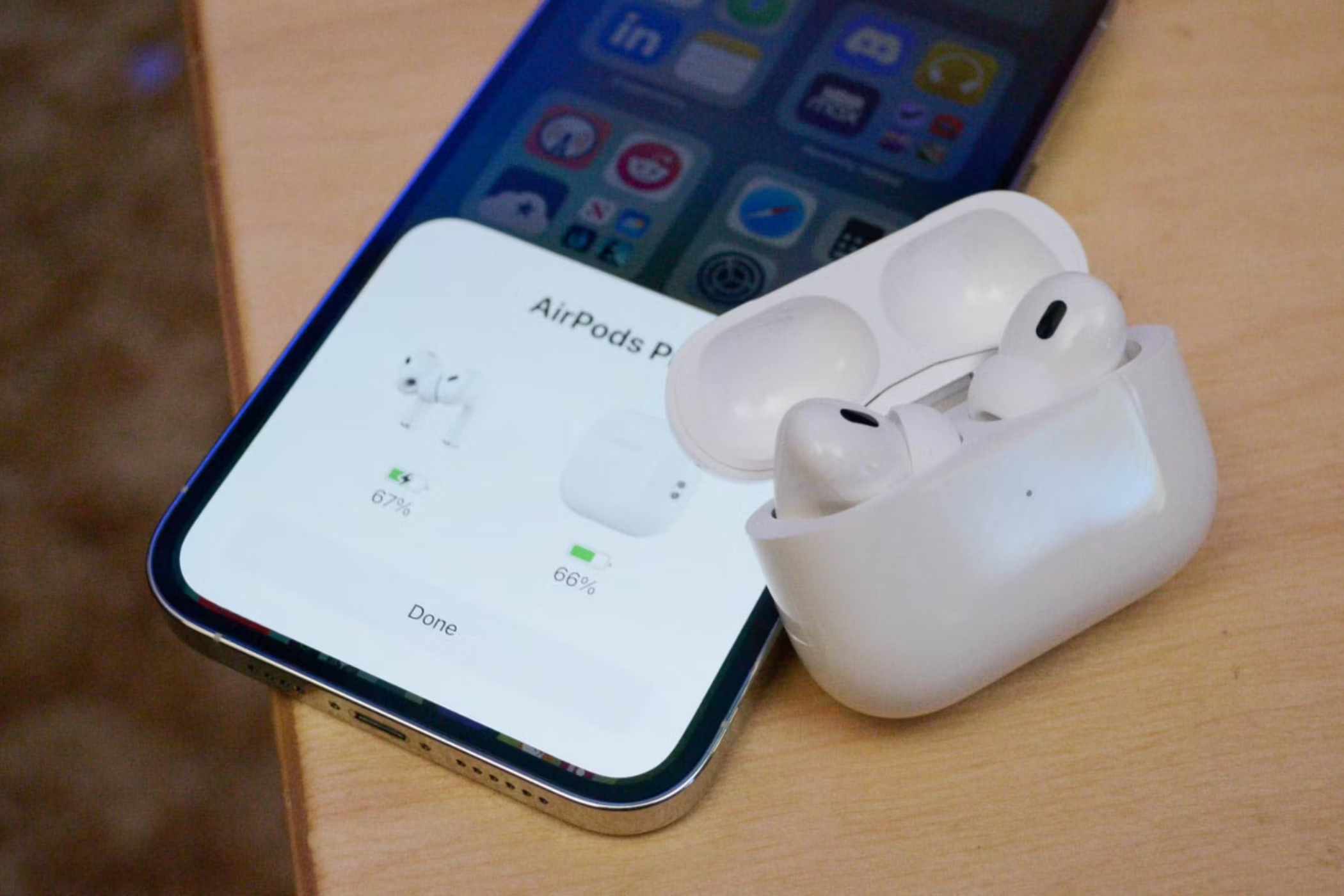
Connecting AirPods to a Windows PC
Windows users, this one’s for you! Though AirPods is an Apple product, it doesn’t create any problem for a Windows PC to pair with it because of the Bluetooth technology used in both devices.
- Step 1: Get Your AirPods Ready
It is very important that you have your AirPods fully charged and put in their case at the very beginning of the process. Take off the lid of the case. So, here is the deal: on the back of your charging case, locate the little, round button and hold it down for a while. You can watch the light indicator inside the case (or on the front, for some models) turn to white and blink. This is the signal that your AirPods are now ready to connect with (“pairing mode”). Cool, right?
- Step 2: Open Bluetooth Settings on Windows
This is the moment to have a look at your Windows laptop and find where the Bluetooth settings are. Here are some options you may use:
- Method A (Quick Access): You can find the Action Center icon in the bottom-right corner of your taskbar. After that, you turn on the Bluetooth by clicking on the tile and right-click it then select “Go to Settings” or “Open Settings” option.
- Method B (Through Settings): Press the Start key or click on it and choose “Settings” option. In the Settings window, click on “Devices” and from the left “Bluetooth & other devices” menu is your next option.
- Step 3: Add Your Device
The “Bluetooth & other devices” panel will help you to find out if the Bluetooth is switched on, and if not, you should turn it on. Then, right at the top of the window, you can see the option to “Add Bluetooth or other device” and, clicking on it, you are ready to add the new device.
A new window will pop up. Choose “Bluetooth” (the first option) because AirPods are Bluetooth headphones.
- Step 4: Select Your AirPods
Now your computer will try to get a list of all Bluetooth devices nearby. And it is expected that those AirPods will be the ones whose light is still blinking and that the computer will identify as “AirPods” (or “AirPods Pro,” “AirPods Max,” “AirPods Studio,” etc., accordingly to the model). You should then proceed by clicking on your “AirPods” from that list.
- Step 5: Connect!
On your screen, there might be some interaction needed with different instructions or questions. Your laptop will then establish a connection with your AirPods. Once done, a confirmation message will be on the screen and solid green will be the color of your AirPods’ status light (if the case is still open) or it will simply disappear. You’re good to go!
Music players, video conferencing tools, or any other applications where sound is used will now let you use your AirPods as the output device. You just need to click on the speaker icon which is located in your taskbar and then choose your AirPods.
Connecting AirPods to a MacBook
Usually, the process of linking AirPods to a MacBook is more or less automatic, particularly when the same Apple ID is used on both devices.
Step 1: Get Your AirPods Ready
Similar to the case with Windows, make sure that your AirPods are fully charged and placed inside their proper charging case. If the status light is not already blinking white, then press and hold the small button on the back of the case until it does it.
Step 2: Open Bluetooth Settings on macOS
There are a number of options that you may use to access Bluetooth setting on your MacBook:
- Option A (Menu Bar)
Left-click the Control Center icon (two toggles) which is situated at the upper -right corner of your screen (near the clock). By clicking the element Bluetooth the user comes to the Bluetooth options menu. If the Bluetooth device isn’t still active, it could be easily done with one more clicking of the mouse. Next, hit the “Bluetooth Preferences…” button.
- Option B (System Settings)
Click the Apple menu () which is located at the upper-left corner of your screen anyway and choose the option “System Settings” (or “System Preferences” in case you have the older macOS versions). Locate the item “Bluetooth” in the sidebar and click it.
Step 3: Select Your AirPods
The Bluetooth panel in a window should display your AirPods together with other devices. When using the same Apple ID, they may be even recognized and be ready for use under “My Devices” thus no pairing is required! If this happens, your devices will be displayed in the “Devices” section.
Press the “Connect” button next to your AirPods.
Step 4: Have Fun!
Your MacBook will link to your AirPods. A connection will be established between the two devices if the inscription changes from “Connect” to “Connected”. Good job! You just did it!
To toggle between accessible sound devices, click on the sound icon in the menu bar and select your AirPods from the output choices.
Connecting AirPods to a Chromebook
Chromebooks are known for being easy to use, and setting up your Apple AirPods is just as simple, which is the same way it works in a Windows PC. Basically, the designers aimed at making it an intuitive process so that you can very quickly listen to audio content coming from your favorite sources.
Step 1:
Primarily, keep AirPods in a condition to be connected. Besides the requirement for the AirPods to be charged, they should be put in their charging case, and the latter must be open. One of the most important steps in the whole procedure is actually pairing mode. Turn your AirPods charging case around and find the little circular button. Press middle and hold the button until the light that indicates the status, most probably located on the front of the case, starts blinking white. That is when the light indicates a brand new device can find your AirPods.
Step 2:
After that, go to your Chromebook’s settings. The time and status area which is located in the bottom-right corner of your screen is a place to look for. Click on the place; the Quick Settings panel will be opened. The panel that you see here is an access point to the most used settings.
Step 3:
On the Quick Settings panel, you should find an icon labeled “Bluetooth”, which looks like a stylized “B”. Press the icon. If Bluetooth is not currently activated, clicking the button will enable it straight away. To get more control, click on the small arrow by the Bluetooth icon or select “Bluetooth devices” to open the detailed Bluetooth settings menu.
Step 4:
Now, let’s have a look at the pairup process. You will see a “Pair new device” button on the Bluetooth settings page. Point at it and press. The Chromebook will be on the lookout for Bluetooth devices straight away.
Lastly, when the AirPods are found, they may be listed as an available device; hence, you will have to click on the name that points to your AirPods. On doing so, your Chromebook will set up your AirPods, thus becoming ready to play your media out of the AirPods. Then the volume can be controlled with either the Chromebook’s volume keys or the AirPods.
Troubleshooting Common AirPods Connection Issues
Sometimes, things don’t go as smoothly as planned. “Here’s the thing,” even the worst tech can be off from time to time. If your AirPods are acting up and you are not able to connect them, don’t go smashing them just yet! Most times, there are very simple ways to fix what seem like major problems.
This is a list of troublesome attempts to use AirPods with solutions you can carry out by yourself:
AirPods Not Appearing in List:
- Are they ready to connect? Verify once more that the light is blinking white. If the light is showing green, they are not in pairing mode.
- Battery low? Check the battery level of both your AirPods and the charging case. At times, a low charge is what prevents the connection.
- Too far away? Make sure that your laptop and the AirPods case are close to each other during the connection.
- Interference? Interferences can be caused by other Bluetooth devices or Wi-Fi signals. Hence, the noise disappears when you turn all devices off and even change your location.
AirPods Connect, but No Sound:
Is the correct device chosen?
- After connection, your laptop does not have to switch automatically to the AirPods.
- To be sure of it, right-click the speaker icon in your system tray (Windows) or menu bar (macOS/ChromeOS) and choose your AirPods to be the audio output device explicitly.
Volume too low?
- Make sure that the volume on your laptop as well as on your AirPods (if possible) are turned up.
- App-specific settings: Some applications (like Zoom or Spotify) may have their own audio output settings. Make sure that your AirPods are also selected in these apps.
Connection Drops Frequently:
- Distance: Maybe you are too far from your laptop. Bluetooth has a limited range.
- Interference: Once again, another wireless signal which is near to your Bluetooth is capable of bringing noise and dropping your connection.
- Laptop’s Bluetooth driver: Occasionally, an old or corrupt Bluetooth driver on your laptop can be the reason for the difficult connection. Windows users might update drivers through Device Manager.
AirPods Won’t Connect After Working Before:
- Forget and Re-pair: This is the most common solution! In the Bluetooth settings on your laptop, locate your AirPods and choose “Forget Device” or “Remove Device.”
- After that, start the connection process all over again. Most of the time, this method helps to eliminate the old connection files.
- Reset Your AirPods: When the option to forget and re-pair is unavailable, one step further is to reset your AirPods completely. It is done by pressing the back button for a long time until the light changes from amber to white. Note, this will unpair them with all the devices you have.
- Restart Your Laptop: The oldest trick in the book, but often effective!
- Checking for software updates: Are you sure that your laptop’s OS (Windows, macOS, ChromeOS) is the latest?
- If not, updates usually come with bug fixes and improved Bluetooth compatibility.
Optimizing Your AirPods Experience on Laptop
Once your AirPods are linked, tailor the sound preferences via Bluetooth. You can also change the sound level without any trouble by asking Siri or using the device you have at hand. Make sure the best possible noise isolation, as well as the highest quality of the sound, are achieved by a proper fit and thus get the most out of your listening pleasure.
Switching Between Devices
Arguably, this is the feature that most highlight AirPods, in the case, the Apple ecosystem. In the event that you have them Bluetooth connected to your iPhone and your MacBook (and both have the same Apple ID logged in), by simply changing the device where you play the audio, the AirPods should be subsequently connected to this new device. Thus if playing music on iOS you go and launch a video on your Mac, just as a consequence of the action, your AirPods will be the ones finally playing the sound to the latter device.
With Windows or Chromebooks, the process of picking AirPods as the sound output source will most likely be a manual one every time.
Adjusting Audio Quality and Microphone Settings
Your AirPods are not just for playback; they also feature a built-in microphone, which is very handy in the case of video calling, voice recording, or simply using a cheap podcast microphone alternative while you’re outside.
- On Windows: Open Settings > System > Sound. Under “Output,” choose your AirPods. Under “Input,” choose your AirPods for the microphone. Here, you can also change the volume levels. To get better sound, some users say that if you are not using the microphone, it is better to select the “Headphones (AirPods Stereo)” option for the output because the audio will be of higher quality than the one from “Headset (Airpods Hands-Free AG Audio),” which is intended for calling and uses a lower quality codec.
- On macOS: Settings > Sound. On the “Output” tab, select your AirPods. On the “Input” tab, select your AirPods as the microphone.
- On Chromebook: Click on the time/status area followed by the volume slider. You will get the options for “Output” and “Input.” Choose your AirPods for both.
What About AirPods Features on Laptop?
Although you have integration without interruption and features such as “Hey Siri” on Apple gadgets, some advanced AirPods features may not be operational on Windows or Chromebooks. For instance:
- Automatic Ear Detection: The feature that pauses audio when an AirPod is removed, generally works only with Apple devices.
- Customizable Controls: If the tapping controls (e.g., double-tap for play/pause) are used for basic functions, you will not be able to customize them through the laptop settings as you would on an iPhone.
- Active Noise Cancellation/Transparency Mode (AirPods Pro/Max): Most of the time, you can switch these modes by pressing the force sensor on AirPods Pro or the Noise Control button on AirPods Max; however, you will not get the visual indicators or controls on your laptop’s screen.
- “Find My” Feature: It is only for Apple devices.
Therefore, even though you may not have all the bells and whistles, the main features – excellent sound and a good microphone – are fully operational on all platforms.
A Note on Different AirPods Models
“Actually,” linking the device is nearly identical for all AirPods versions: AirPods (1st, 2nd, 3rd Generation): The connection is made for all via the button on the back of the charging case.
- AirPods Pro (1st, 2nd Generation): Similar method, the button on the back of the MagSafe/charging case is used.
- AirPods Max: The Noise Control button on the right ear cup is what you’ll be using. Keep pressing and holding it until the status light is flashing white. Essentially, the differences that you will see between the models in terms of the connection method will be only slight. It will mostly be the audio quality, noise cancellation features, battery life to differ. Were you aware that AirPods are not waterproof? Therefore, stay away from liquids!
Why Connect AirPods to Your Laptop?
You could be thinking, why go through all the trouble of pairing my AirPods with a laptop, when I can just use a pair of wired headphones or the built-in speakers of my laptop? That’s a very good question!
- Freedom of movement: The absence of wires means that you are not limited to your desk. Get a snack, stretch, or walk around your room while talking to someone on the phone and no one will notice.
- Better sound quality: Let’s be honest, the speakers on laptops are seldom impressive. AirPods provide a listening experience that is by far more pleasing for music, movies, and podcasts.
- Better communication: The microphones on AirPods are in most cases much better than the majority of built-in mics in laptops, thus enabling your voice to be heard more clearly during video conferences or online gaming sessions. It is especially a great help if you are the one with the best gaming CPU and still want to have clear communications!
- Privacy: Only you can listen to your audio. It is a good solution for working late at night or watching videos without disturbing others.
- Seamless Ecosystem (for Apple users): In case you are an Apple user, connecting your AirPods to your MacBook is an extension of your already existing seamless experience.
Wrapping Up: Your AirPods, Your Laptop, Perfect Harmony
That’s pretty much the whole story! Once you know the steps, hooking up your AirPods to your laptop is a really easy thing to do. Whatever operating system your laptop might be running – be it Windows, macOS, or Chrome OS – your AirPods are ready to give you top-notch sound and easy communication.
The main idea is the one where you AirPods have to be in pairing mode, which most of the time means just opening the charging case close to your laptop and pressing the pairing button. At the same time, make sure your laptop’s Bluetooth is turned on and searching for new devices. It’s as if the two devices were greeting each other, thus establishing a wireless connection.
In case you come across difficulties, don’t forget those grear troubleshooting tricks. In most cases, connection problems are solved by simply resetting your AirPods or re-pairing them. The process of “forgetting the device” on your laptop and starting the pairing process anew might be involved here.
As a matter of fact, go ahead with no doubts! Hook up your AirPods, pump up your music, take part in that important video call, or get lost in a compelling game. Your laptop and AirPods make a perfect duo now, giving you utmost comfort and wireless freedom. Enjoy the liberty of untethered audio!