How to Fix Lip Sync Delay on Dolby Atmos Soundbars — Complete 2026 Guide
Lip sync delay on Dolby Atmos soundbars is one of the most reported home theater frustrations — voices arrive a split second after lips move, explosions sound a beat late, and it kills immersion fast. The good news: it’s almost always fixable without replacing any hardware. The root cause is almost always a timing mismatch between video and audio processing — your TV decodes the picture while your soundbar simultaneously unpacks complex Dolby Atmos bitstreams, and the two don’t always finish at the same time. This guide covers every proven fix, from the easiest one-click settings to deeper HDMI and connection-level solutions, for Samsung, LG, Sony, and other major TV brands in 2026.
Why Does Dolby Atmos Cause Lip Sync Problems?
Lip sync delay is not a sign that your soundbar or TV is broken. It is an inherent challenge of modern home theater signal chains, and understanding why it happens is the first step to fixing it.
When you press play on Netflix or a Blu-ray, your content contains two separate streams: a video signal and a Dolby Atmos audio bitstream. Your TV processes the video — applying motion smoothing, upscaling, HDR tone-mapping — while simultaneously sending the audio bitstream to your soundbar. Your soundbar then has to decode and render the Dolby Atmos object-based audio, which involves calculating speaker positions, handling room correction, and applying dynamic normalisation. This whole chain introduces processing time measured in milliseconds — but milliseconds are enough to cause visible lip sync errors.
Research from AV enthusiasts and lab testing shows that Dolby Digital/Dolby Atmos bitstreaming can introduce anywhere from 32 milliseconds to over 140 milliseconds of audio latency depending on the hardware involved. The 32 ms figure represents the minimum Dolby buffer chunk size transmitted at once — before any decoding happens. Add room correction, object rendering, and eARC handshake overhead, and the delay compounds further. Most people don’t notice delays under 20–30 ms, but anything beyond that becomes visually apparent — especially in dialogue scenes.
Standard stereo or even Dolby Digital 5.1 is simpler to decode and takes less time. Dolby Atmos is object-based — the soundbar must calculate the precise position and trajectory of every audio object in three-dimensional space for every frame of audio. This extra computational work, on top of the standard decoding pipeline, is exactly why Atmos-specific lip sync delay is so much more common than standard audio delay. Switching from Atmos to 5.1 or stereo often eliminates the delay entirely — confirming the source of the problem.
Common Root Causes of Lip Sync Delay on Atmos Soundbars
| Cause | Description | How Common |
|---|---|---|
| Audio decoding delay | Soundbar takes time to unpack Atmos bitstream while TV has already sent video | Very common |
| TV video processing | Motion smoothing, upscaling, and HDR processing delays the video signal | Very common |
| HDMI ARC handshake timing | ARC negotiation adds buffering, especially with Atmos over standard ARC | Common |
| Double-processing | Both the TV and soundbar apply audio processing simultaneously, compounding delay | Common |
| Source device output format | Apple TV, Fire TV, or cable box outputs a format that doesn’t match soundbar efficiently | Common |
| Bluetooth audio path | Bluetooth introduces ~100–200ms of inherent latency — always noticeable | Common (Bluetooth setups) |
| App-specific buffering | Some streaming apps (Netflix, Prime Video) buffer audio differently, causing app-specific delays | Occasional |
| Outdated firmware | Known lip sync bugs in older firmware versions on soundbars and TVs | Occasional |
Step 0: Diagnose Before You Fix
Before changing any settings, spend two minutes diagnosing which type of delay you have. This tells you exactly where to look:
- ☐ Audio behind video (lips move first, sound arrives late)? → Most common. Focus on audio delay, soundbar decoding, and ARC settings.
- ☐ Audio ahead of video (sound arrives before lips move)? → Less common. Usually caused by heavy TV video processing. Try Game Mode on the TV.
- ☐ Delay only on Dolby Atmos content, not stereo/5.1? → Atmos decoding is the culprit. Try switching to PCM or Dolby Digital 5.1 as a test.
- ☐ Delay only on specific apps (Netflix but not YouTube)? → App-specific buffering or audio format mismatch. Check audio output settings per app.
- ☐ TV speakers perfectly in sync but soundbar delayed? → The issue is in the HDMI/audio path, not the TV panel itself.
- ☐ Delay only when Bluetooth is used? → Bluetooth has inherent latency (~100–200ms). Use HDMI instead.
- ☐ Delay started after a TV or soundbar firmware update? → Check for a newer firmware update, or roll back if possible.
Method 1: Use the Built-In Audio Delay / Lip Sync Setting (Start Here)
The fastest first step is to check whether your TV or soundbar has a built-in lip sync or audio delay adjustment. Most modern TVs and soundbars from Samsung, LG, Sony, and others include this feature — though its usefulness varies significantly.
How to Access the Audio Delay Setting
| Brand | Setting Location | Setting Name |
|---|---|---|
| Samsung TV | Settings → Sound → Expert Settings | Digital Output Audio Delay |
| Samsung Soundbar | Soundbar remote or SmartThings app | Audio Sync / AV Sync |
| LG TV | Settings → All Settings → Sound | AV Sync Adjustment |
| Sony Bravia | Settings → Display & Sound → Audio Output | A/V Sync |
| TCL / Hisense | Settings → Audio → Advanced | Audio Delay / Lip Sync |
| Most Soundbars | Remote or companion app | AV Sync, Audio Delay, Lip Sync |
Most TVs only allow you to increase audio delay — not reduce it. This is only useful if your audio is ahead of your video. If your audio is already behind your video (the most common scenario with Atmos), increasing the audio delay makes it even worse. If your TV or soundbar doesn’t offer a negative delay or a video delay option, you’ll need to use the methods below instead.
Method 2: Switch Audio Output to PCM (Most Effective Single Fix)
This is the single most effective fix for the majority of Dolby Atmos lip sync problems, and it works on almost every TV and soundbar combination. By switching your TV’s digital audio output from Bitstream / Auto / Dolby Digital / Passthrough to PCM, you move the audio decoding workload from your soundbar back to your TV — which can then synchronise audio and video before sending anything out.
Why PCM Fixes Lip Sync
When your TV outputs audio in Bitstream mode, it sends the raw Dolby Atmos data to your soundbar, which must then decode it independently. Your TV has no way of knowing exactly how long that will take, so it plays video immediately and lets the soundbar catch up — badly. When PCM is used, your TV decodes the audio itself first, then sends pre-decoded audio and already-processed video at the same time, keeping everything in sync.
How to Switch to PCM on Major TV Brands
| TV Brand | Navigation Path | Setting to Change |
|---|---|---|
| Samsung | Settings → Sound → Expert Settings → Digital Output Audio Format | Change to PCM |
| LG | Settings → All Settings → Sound → Sound Out → Digital Sound Out | Change to PCM |
| Sony Bravia | Settings → Display & Sound → Audio Output → Digital Audio Out | Change to PCM |
| TCL / Roku TV | Settings → Audio → S/PDIF and ARC | Change to PCM |
| Hisense | Settings → Sound → Audio Output → HDMI ARC Audio | Change to PCM |
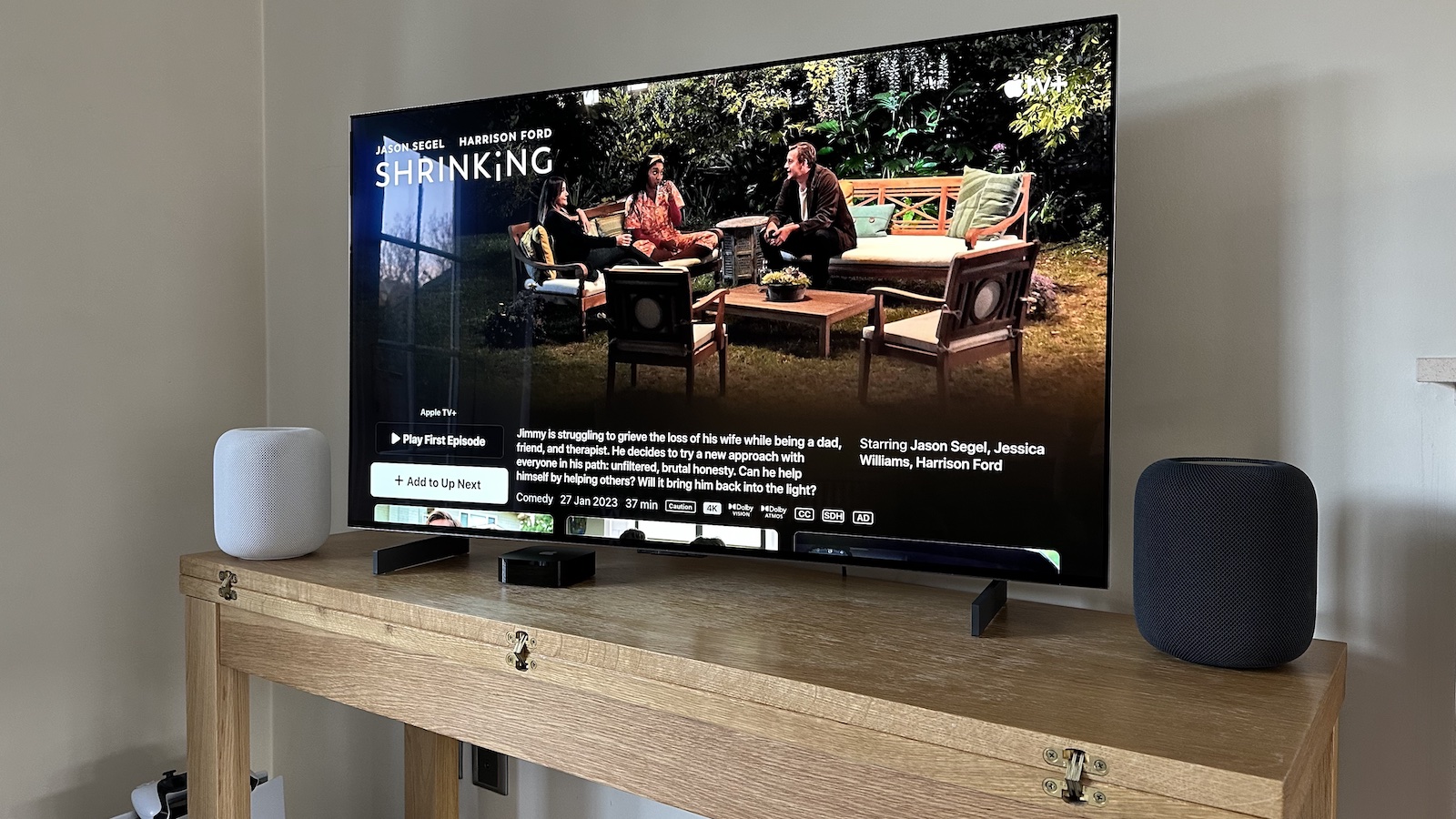
If you have an eARC connection, you don’t have to choose between surround sound and lip sync. Set your TV to output Multichannel PCM (sometimes called “LPCM 5.1” or “PCM 7.1”) — this sends pre-decoded surround audio via eARC to your soundbar, keeping all your surround channels while eliminating the Atmos decoding delay. You lose the object-based Atmos overhead effects but keep full 5.1 or 7.1 surround. For most content, this is an excellent compromise.
Method 3: Upgrade to HDMI eARC (If You’re Still Using Standard ARC)
If you’re using a standard HDMI ARC connection, upgrading to eARC can resolve many Dolby Atmos lip sync issues permanently. Here’s why this matters so much:
Standard ARC was introduced with HDMI 1.4 and carries only around 1 Mbps of bandwidth. This is enough for compressed Dolby Atmos (which is what most streaming services deliver) but creates timing instability because of its reliance on HDMI-CEC for communication — a protocol that can be buggy between different manufacturers’ devices. eARC, introduced with HDMI 2.1, offers up to 37 Mbps of bandwidth, uses its own dedicated data channel independent of HDMI-CEC, and crucially includes mandatory lip-sync correction built into the specification itself.
| Feature | HDMI ARC | HDMI eARC |
|---|---|---|
| Introduced With | HDMI 1.4 | HDMI 2.1 |
| Bandwidth | ~1 Mbps | Up to 37 Mbps |
| Dolby Atmos Support | Compressed only (Dolby Digital+) | Full uncompressed (TrueHD) |
| Lip Sync Correction | Optional (many skip it) | Mandatory |
| HDMI-CEC Required | Yes — can be buggy | No — independent channel |
| DTS:X / TrueHD Support | No | Yes |
| Reliability | Variable between brands | More consistent |
How to Check if Your Setup Supports eARC
- Look at the HDMI ports on your TV — one port should be labelled “HDMI ARC” or “HDMI eARC”. If it says “eARC”, you have it.
- Check your soundbar’s HDMI input — it should also be labelled eARC on the back panel or in the manual.
- Use a high-speed HDMI 2.1 cable — standard HDMI cables may not reliably carry eARC signals, especially over longer runs.
Even on eARC-capable setups, some Samsung and Sony TV and soundbar combinations show lip sync issues when eARC is set to Auto. Try going into your TV’s audio output settings and manually toggle eARC off, wait 10 seconds, then turn it back on. This forces a fresh eARC handshake and often resolves timing drift that builds up over time. Alternatively, some users report better results by switching eARC mode from Auto to Off — falling back to standard ARC which can be more stable in certain cross-brand combinations.
Method 4: Fix the Audio Format at the Source Device
If your audio is coming from a source device — Apple TV 4K, Amazon Fire TV, Roku, PlayStation 5, Xbox, or a cable box — that device’s audio output settings are a major factor in lip sync behaviour. Each device may be outputting audio in a format that causes extra processing delay.
Apple TV 4K — Atmos Lip Sync Fix
- Go to Settings → Video and Audio
- Under Audio Format, keep it on Auto first and test
- If delay persists, toggle Dolby Atmos OFF as a test to confirm it’s the cause
- If confirmed, try: Change Format → Dolby Digital 5.1 — this is more stable than Atmos on many ARC setups
- Run Settings → Video and Audio → Calibration → Wireless Audio Sync with your iPhone nearby — Apple TV measures and compensates for timing automatically
- If using Match Frame Rate / Match Dynamic Range: try disabling Match Frame Rate — frame rate switching during playback can temporarily exaggerate sync issues
Amazon Fire TV / Fire Stick
- Go to Settings → Display & Sounds → Audio
- Under Dolby Atmos: try toggling it off to test, then back on once other settings are corrected
- Set Surround Sound to Best Available rather than forcing a specific format
PlayStation 5
- Go to Settings → Sound → Audio Output
- Under Audio Format (Priority): switch from Dolby Atmos to Linear PCM as a test
- Enable 3D Audio for TV Speakers if available — PS5’s own 3D audio can bypass some external decoding overhead
Roku Devices
- Go to Settings → Audio
- Set Audio Mode to Auto first
- If delay persists, set HDMI to PCM-Stereo or Dolby D instead of Atmos/Auto
Method 5: Enable Game Mode or Cinema Mode on Your TV
One of the most overlooked fixes is enabling Game Mode on your TV’s picture settings. Game Mode dramatically reduces the TV’s video processing pipeline — disabling motion smoothing, advanced upscaling, and other latency-adding features — which reduces the amount of time the TV delays the video output. With less video processing delay, your video catches up to the audio, and sync improves.
While this is typically thought of as a gaming feature, it works just as well for movies and TV shows when lip sync is the priority. The trade-off is slightly reduced picture processing — but most modern OLED and QLED panels in Game Mode still produce excellent images.
| TV Brand | Game Mode Location | Additional Tip |
|---|---|---|
| Samsung | Settings → General → External Device Manager → Game Mode | Also disable “Intelligent Mode” for lowest processing |
| LG OLED | Settings → All Settings → Picture → Select Mode → Game | Enable “OLED Motion Pro” carefully — can add delay |
| Sony Bravia | Settings → Display & Sound → Picture → Picture Mode → Game | Disable “MotionFlow” to reduce additional processing |
| TCL | Settings → Picture → Picture Mode → Game | Disable “Action Smoothing” in Advanced Picture |
Method 6: Re-Route Your HDMI Connections (The Definitive Fix)
The cleanest and most reliable way to permanently eliminate Dolby Atmos lip sync delay is to change how your devices are connected. The standard setup — source device → TV → soundbar via ARC — is fundamentally prone to timing issues because your TV is in the middle of both the audio and video signal chains.
The Better Setup: Source → Soundbar → TV
If your soundbar has an HDMI input and HDMI output (passthrough), connect your streaming device or Blu-ray player directly into the soundbar, and then run a single HDMI cable from the soundbar to your TV. In this configuration:
- Your soundbar receives the raw audio and video signal simultaneously
- It decodes the Dolby Atmos audio and then holds the video until audio decoding is done
- Both audio and video are released to the TV at the same time — perfect sync
- Any TV video processing delay can then be compensated by the soundbar’s own audio delay setting
This method only works if your soundbar has an HDMI input port and an HDMI output (passthrough) port. Many budget and mid-range soundbars only have a single HDMI ARC port for connecting to the TV — they don’t have additional inputs for source devices. Check your soundbar’s spec sheet or back panel before planning this setup. Soundbars that do support this include the Sonos Arc, Samsung HW-Q990D, Sony HT-A7000, and LG S95QR.
Brand-Specific Lip Sync Fix Guides
Samsung TV + Samsung Soundbar
Samsung-to-Samsung setups should theoretically be the most compatible, but lip sync reports are common — especially on soundbars using eARC with Atmos content. Here’s the recommended fix sequence:
- Open the SmartThings app on your phone and check for soundbar firmware updates
- On the TV: Settings → Sound → Expert Settings → set Digital Output Audio Format to PCM as a test
- If you need Atmos: try setting Digital Output Audio Format to Dolby Digital+ instead of Auto
- Disable eARC on the TV side (Settings → General → External Device Manager → eARC Mode → Off), wait 10 seconds, re-enable
- On the soundbar remote, press the Sound Control or Audio Sync button and adjust the AV sync slider
- Factory reset both devices if nothing else works — a handshake glitch between TV and soundbar can persist indefinitely until both are reset
LG OLED TV + Soundbar
- Go to Settings → All Settings → Sound → AV Sync Adjustment
- Turn AV Sync Adjustment ON
- Enable Bypass mode first — this reduces processing-path delay in many LG setups
- If Bypass doesn’t help, disable it and use the slider to fine-tune manually
- Turn off AI Sound Pro and virtual surround modes on the TV — these add processing overhead that compounds delay
- Under Sound Out → Digital Sound Out, try switching to PCM to test
Sony Bravia + Soundbar
- Go to Settings → Display & Sound → Audio Output
- Set Digital Audio Out to PCM as a first test
- Set A/V Sync to Auto
- Check eARC Mode — try both Auto and Off to see which is more stable with your soundbar
- Ensure Bravia Sync (HDMI-CEC) is enabled — this helps Sony and connected devices agree on audio timing during standby wake-up
- Disable MotionFlow and other picture processing features if audio is ahead of video
Advanced Fixes for Stubborn Lip Sync Issues
Firmware Updates — Don’t Skip This Step
Known lip sync bugs are frequently fixed in firmware updates. Before spending hours adjusting settings, check that both your TV and soundbar are running the latest firmware. On most modern smart TVs, this is found under Settings → Support → Software Update → Update Now. For soundbars, check the manufacturer’s companion app (SmartThings for Samsung, LG ThinQ app, Sony | Music Center, etc.).
Replace the HDMI Cable
A degraded or non-compliant HDMI cable can cause intermittent signal issues that manifest as audio sync problems. For eARC connections specifically, use a certified Ultra High Speed HDMI cable (48 Gbps, HDMI 2.1 rated). Cheap or counterfeit cables may not reliably carry the eARC data channel, leading to unpredictable handshake behaviour and audio timing drift.
Disable Double-Processing
Both your TV and soundbar may be applying sound processing simultaneously — virtual surround, dynamic EQ, night mode, dialogue enhancement. Each of these adds processing latency that compounds. Disable all audio enhancement features on both the TV and the soundbar, test sync, and then re-enable them one at a time to find which one introduces delay.
Factory Reset Both Devices
If your TV and soundbar have been power-cycled repeatedly, updated, and re-configured many times, the HDMI handshake parameters cached between them can become corrupted — resulting in persistent sync issues that no setting adjustment will fix. A factory reset of both devices clears this state and forces a completely fresh negotiation.
A factory reset will erase all custom picture, sound, and network settings on both devices. Write down your current settings beforehand so you can restore your preferences after the reset. For smart TVs, logging into your streaming accounts again will also be required.
Complete Fix Priority Order: Where to Start and When to Stop
- ☐ 1. Restart everything — power-cycle your TV, soundbar, and source device completely (not standby)
- ☐ 2. Check for firmware updates on both TV and soundbar
- ☐ 3. Adjust the built-in lip sync / audio delay setting on your TV and soundbar
- ☐ 4. Switch audio output to PCM on your TV — test if sync is resolved
- ☐ 5. Enable Game Mode on your TV to reduce video processing latency
- ☐ 6. Check HDMI cable — replace with a certified Ultra High Speed HDMI 2.1 cable
- ☐ 7. Toggle eARC off and on — force a fresh handshake
- ☐ 8. Adjust source device audio format (Apple TV, Fire TV, PS5, etc.)
- ☐ 9. Disable all audio enhancements on both TV and soundbar
- ☐ 10. Re-route HDMI connections (source → soundbar → TV) if soundbar has passthrough
- ☐ 11. Factory reset both TV and soundbar — last resort for persistent issues
Recommended Products to Help Fix Lip Sync Issues
A certified Ultra High Speed HDMI 2.1 cable is essential for stable eARC connections carrying Dolby Atmos. Many lip sync issues stem from non-compliant or degraded HDMI cables. Get a premium cable from a reliable brand.
If your soundbar only has an optical input but your TV has eARC, an HDMI eARC audio extractor can bridge the gap — letting you receive Atmos-compatible audio from an eARC port and convert it to a format your existing soundbar can use.
If you have multiple source devices but only one eARC port on your TV, a quality HDMI 2.1 switch with eARC pass-through allows all devices to benefit from the full eARC audio path — reducing lip sync issues across your entire setup.
Summary: Pros & Cons of Each Fix Method
- Effectiveness: High — fixes majority of cases
- Ease: Very easy — one setting change
- Trade-off: Loses Dolby Atmos object audio
- Best for: Anyone who prioritizes sync over Atmos
- Effectiveness: High — mandatory lip sync correction
- Ease: Moderate — requires compatible hardware
- Trade-off: Need eARC-capable TV and soundbar
- Best for: Long-term permanent fix with Atmos preserved
- Effectiveness: Very high — eliminates root cause
- Ease: Moderate — requires soundbar with HDMI passthrough
- Trade-off: Not all soundbars support passthrough
- Best for: Audiophiles who want zero compromise
- Effectiveness: Moderate — helps when video processing is the delay source
- Ease: Very easy — one setting change
- Trade-off: Slightly reduced picture processing
- Best for: When audio is ahead of video
Frequently Asked Questions (FAQ)
Q1: Why does my Dolby Atmos soundbar have a delay but stereo audio doesn’t?
Dolby Atmos is an object-based audio format that requires significantly more processing than standard stereo or even Dolby Digital 5.1. Your soundbar must calculate the three-dimensional position of every audio object in every frame of audio — a computational workload that adds decoding time. This extra time, combined with the fixed Dolby bitstream buffer size, results in higher audio latency on Atmos content specifically. Switching to PCM or Dolby Digital 5.1 typically eliminates the delay because simpler formats decode faster.
Q2: Will switching to PCM ruin my sound quality?
Not necessarily. PCM is an uncompressed format — when your TV decodes the source audio and outputs it as PCM, you’re getting an accurate reproduction of the original audio. What you lose is the Dolby Atmos object-based overhead layer (the spatial audio effects). Your soundbar’s built-in processing will still apply its own upmixing and virtualization to PCM audio, so you’ll still hear surround effects — just not object-based Atmos positioning. For many viewers and listening environments, the difference is subtle and the sync improvement is worth the trade-off.
Q3: Does eARC completely eliminate lip sync problems?
eARC makes mandatory lip-sync correction part of the specification, which is a major improvement over standard ARC. In practice, eARC setups have far fewer lip sync issues — but they are not completely immune, especially when there are cross-brand compatibility quirks or when both the TV and soundbar apply additional audio processing. The combination of eARC and switching to PCM or disabling double-processing is the most reliable way to achieve consistent sync.
Q4: My TV only has ARC, not eARC — can I still get Dolby Atmos without lip sync issues?
Yes — standard ARC can carry compressed Dolby Atmos (Dolby Digital Plus with Atmos metadata), which is the format used by Netflix, Disney+, Apple TV+, and most streaming services. You won’t get lossless Atmos (from Blu-ray), but you can still hear the object-based spatial audio effects. The lip sync challenge on ARC is real but manageable by switching your TV’s audio output format to Dolby Digital+ or using the audio delay settings as described in this guide.
Q5: My lip sync is fine when using the TV’s built-in apps but delayed when using Apple TV or Fire TV. Why?
This is a classic source device audio format mismatch. When using the TV’s built-in apps, the TV controls both the video output and the audio routing simultaneously, so it can sync them perfectly. When you introduce an external source device like Apple TV or Fire TV, that device controls the audio format independently — and may be outputting a format that takes longer for your soundbar to decode than the TV’s native audio path. Fix this by adjusting the audio format settings on the source device itself, as detailed in the source device section above.
If you’ve worked through every step in this guide and still can’t fix the lip sync on your Dolby Atmos soundbar, drop a comment below with your TV model, soundbar model, and source device — and we’ll help you pinpoint the exact cause. Every setup is different, and sometimes a specific firmware bug or hardware quirk requires a tailored solution.