Why is My Audio Buzzing? How to Fix Hum, Static, and Connection Issues
There is nothing worse than buying premium audio gear, plugging it in, and hearing a loud buzz, hum, or static. Or perhaps you’re ready to work, but your expensive headphones just won’t connect to your laptop. The search data shows that while many of you are buying great gear, a significant number are struggling to get it working correctly.
In this guide, we leave the sales pitch behind and focus purely on repairs. We will teach you how to banish the dreaded “60Hz Hum” from your subwoofer, fix static on your Blue Yeti USB mic, and reset your stubborn Bluetooth devices.
Fixing the Dreaded Subwoofer Hum (Ground Loops)
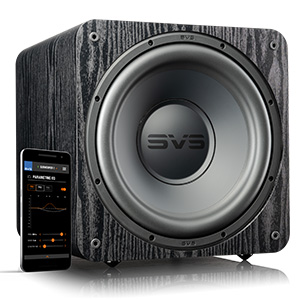
If your subwoofer makes a low-pitched “MMMMM” noise the moment you turn it on (even with no music playing), you likely have a Ground Loop.
The Diagnosis
This happens when your subwoofer and your receiver are plugged into different power outlets with different “ground” potentials. The electricity travels through the RCA cable to find a path to ground, causing the buzz.
The Fixes
| Method | Difficulty | Cost |
|---|---|---|
| 1. The “Same Strip” Trick | Easy | Free |
| 2. Cheater Plug (Temporary) | Easy | $2 |
| 3. Ground Loop Isolator | Medium | $15 |
Eliminating Static on USB Mics (Blue Yeti)
A common complaint with the Blue Yeti and other USB microphones is a high-pitched digital whine or “static” in the background of recordings.
Why It Happens
USB ports on computers are “noisy.” They carry both data and power. If your PC power supply is cheap or overloaded, that electrical noise leaks into the microphone signal.
How to Fix It
- Turn Down the Gain: Most users have the physical “Gain” knob on the mic set too high (100%). Turn the physical knob down to 50% and simply move the mic closer to your mouth.
- Use a Powered USB Hub: Instead of plugging the mic directly into your PC, plug it into a powered USB hub. The hub acts as a filter, providing clean power to the microphone.
- Change Cables: The stock Mini-USB cable included with older Yetis is prone to interference. Swap it for a high-quality shielded USB cable.
The Master Reset: Fixing Wireless Connections
Is your Sony headphone or JBL speaker refusing to pair? Does it say “Connected” but plays no sound? It’s time for a Factory Reset.
Every brand has a secret button combination to wipe the memory cache. Here are the most common ones:
| Brand / Device | Reset Combination |
|---|---|
| Sony Headphones (WH-1000XM) | Hold Power + Custom/NC for 7 seconds while charging. |
| JBL Speakers (Flip/Charge) | Hold Play + Volume Up for 5 seconds until it turns off. |
| Bose Headphones | Plug into wall charger, wait 5 seconds, unplug, wait 1 minute. |
| JVC / Kenwood Car Audio | Remove faceplate, press tiny “Reset” pinhole button with a paperclip. |
Bad Cables: RCA vs. Optical Noise
Sometimes the cable itself is the antenna for noise. The search data for RCA (282) suggests many of you are still using analog cables, which are susceptible to interference.
The “Shielding” Test
If you hear a buzzing that gets louder when you turn up the volume, check your RCA cables. Cheap, thin cables act like antennas, picking up radio waves and WiFi signals.
The Optical Solution
If possible, switch to an Optical (Toslink) cable. Optical cables use light to transmit audio, not electricity. They are physically immune to electrical hum, buzzing, and ground loops. If your Soundbar or Receiver has an Optical port, use it!
Bonus: The Wire Gauge “Calculator” Rule
Finally, we address the “Calculator” (97) keyword. In audio, this almost always refers to Speaker Wire Gauge. Using wire that is too thin (high gauge) over long distances adds resistance, which kills your bass and can cause your amplifier to overheat.
Use this simple rule of thumb (No calculator needed):
- Distance < 50 ft: Use 16 Gauge wire (Standard).
- Distance > 50 ft: Use 14 Gauge wire (Thicker).
- Subwoofers / Car Audio: Always use 12 Gauge or thicker (Lower number = Thicker wire).
Troubleshooting Checklist:
- Humming? Unify your power outlets (Ground Loop).
- Static? Lower the Gain and move the mic closer.
- No Connection? Perform a Factory Reset.
- Weak Bass? Check your wire gauge and polarity (+ to +).
Disclaimer: As an Amazon Associate, we earn from qualifying purchases. Always be careful when working with electrical power outlets.