
How to Connect External Speakers to TV with HDMI: HDMI Audio Extractor Explained
Modern TVs look stunning. The screens are thinner, brighter, and sharper than anything that existed just a decade ago. But there is an uncomfortable truth hiding behind all that visual brilliance: the thinner your TV gets, the worse its built-in speakers sound. Physics is the culprit — slim bezels leave no room for quality speaker drivers, and flat panels have nowhere to project sound toward the viewer. The result is audio that feels hollow, compressed, and completely at odds with the cinematic quality of the picture.
If you already own a great pair of external speakers, a soundbar, a vintage stereo amplifier, or a full home theater system, the obvious solution is to connect them to your TV. But here is where many people hit a wall: the source devices — Blu-ray players, streaming sticks, game consoles — output audio and video together over HDMI, and your TV may not have the right ports to split that audio out to your speakers. Or your speakers simply do not have an HDMI input at all.
The solution to this problem is an HDMI Audio Extractor — a compact, affordable device that separates audio from a video signal so both can reach their ideal destinations simultaneously. This guide explains everything from first principles: what the device is, how it works inside, when you need one, how to set it up, and how to choose the right model for your home.
⚡ Key Takeaways
- An HDMI Audio Extractor splits one HDMI signal into HDMI video output + separate audio output.
- It sits between your source device (streaming stick, console, Blu-ray) and your TV.
- Audio outputs include: optical (Toslink), RCA stereo, 3.5mm headphone jack, and sometimes HDMI eARC.
- It does not work with your smart TV’s built-in apps — use HDMI ARC for that instead.
- Most extractors support up to 4K@60Hz pass-through video with no quality loss.
- HDMI ARC is simpler when both your TV and speaker system support it; an extractor is the fallback for everything else.
- Always check your audio output format (PCM vs. Dolby/DTS) before choosing a model.
Why TV Built-In Speakers Fall Short — And Why External Audio Matters
To understand why HDMI Audio Extractors exist, it helps to understand the problem they solve. Television manufacturers have been locked in a race to make screens as thin and borderless as possible. The OLED panel in a modern flagship TV may be less than 4 millimetres thick at the edges. That leaves almost no physical space for speaker enclosures, and speaker quality is directly tied to enclosure volume and driver size.
The consequence is that even expensive premium TVs frequently come with speakers rated at 20–40 watts of mediocre-sounding audio. The sound fires sideways or backward instead of toward the viewer, lacks bass entirely, and struggles to fill a medium-sized room at normal listening volumes. Dialogue can sound thin and difficult to distinguish from background effects. For everyday news and casual viewing, this is tolerable. For movies, sports, gaming, and music, it is genuinely disappointing.
External audio solutions — whether a simple soundbar, a stereo bookshelf speaker pair, a vintage hi-fi amplifier, or a full 5.1 or 7.1 surround sound system — transform the experience. The challenge is routing audio from your content sources to those speakers efficiently and without quality loss. That is the exact problem an HDMI Audio Extractor is designed to solve.
What Is an HDMI Audio Extractor? The Simple Explanation
An HDMI Audio Extractor — also called an HDMI audio splitter, HDMI to audio converter, or HDMI audio de-embedder in professional AV contexts — is a small electronic device that accepts an HDMI input signal carrying both audio and video, and separates them into distinct outputs. The video signal passes through (usually unchanged) to your TV via an HDMI output port. The audio signal is simultaneously routed to one or more dedicated audio output ports — most commonly optical (Toslink), stereo RCA, and/or a 3.5mm headphone jack.
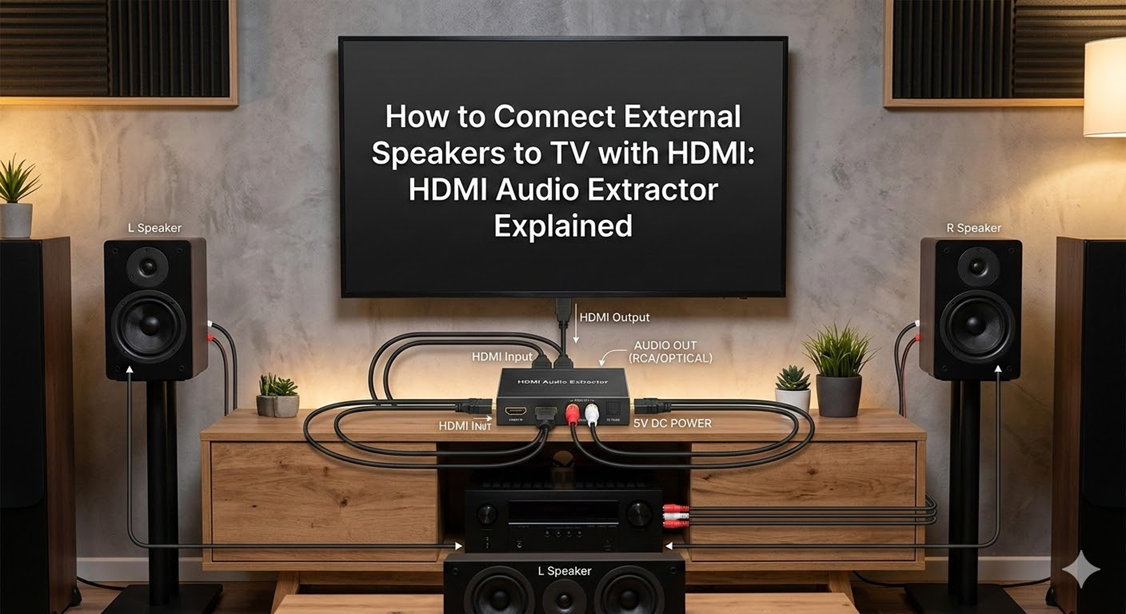
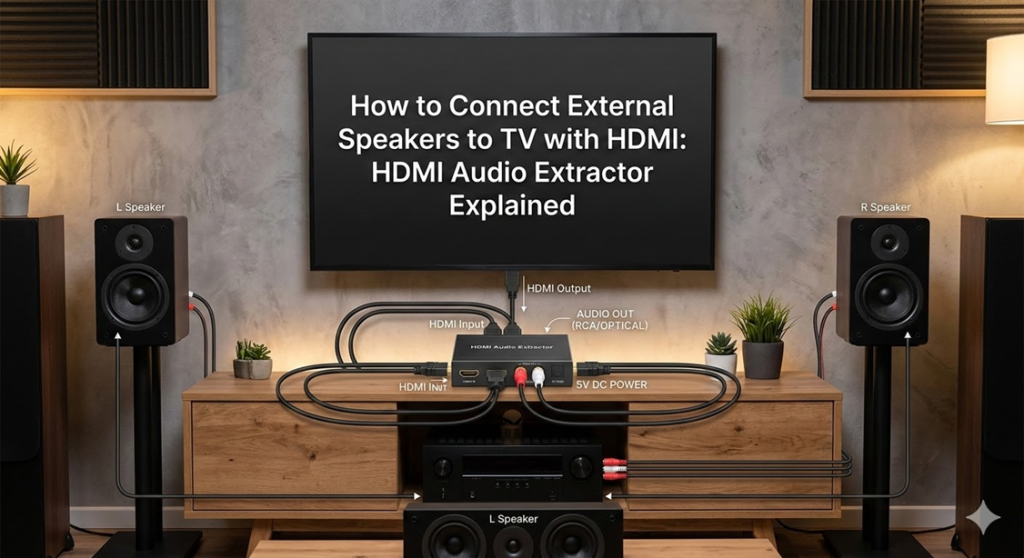
The device sits inline in your signal chain: between your source device and your television. Your HDMI source — whether a Blu-ray player, PlayStation, Xbox, Nintendo Switch, Amazon Fire TV Stick, Roku, Apple TV, or any other HDMI device — connects to the extractor’s input. The extractor then outputs video to your TV and audio to your speakers at the same time, with no perceptible delay between the two.
As explained by OREI’s audio technology team, an HDMI audio extractor sits between your HDMI source and your display. It extracts the audio signal from the HDMI feed, then routes it to your chosen audio output, whether that’s through an optical cable, a stereo RCA connection, or even a 3.5mm headphone jack.
How Does an HDMI Audio Extractor Work Inside?
Understanding the internal process demystifies why the device works and why certain limitations exist. Here is what happens inside an HDMI Audio Extractor when a signal passes through it:
Step 1: Receiving the HDMI Signal
HDMI carries audio and video together as a single digital stream. This combined signal enters the extractor through its HDMI input port. The signal may carry standard stereo PCM audio, multi-channel LPCM, Dolby Digital 5.1, Dolby TrueHD, DTS-HD Master Audio, or Dolby Atmos, depending on the source device and content. HDMI is a digital signal, which means the data is transmitted as ones and zeros — and importantly, an HDMI audio extractor should not degrade your audio quality. Because HDMI is a digital signal, it will remain roughly the same quality unless you degrade it.
Step 2: Demultiplexing Audio and Video
Inside the extractor, dedicated chipsets separate (demultiplex) the audio data stream from the video data stream. This is a purely digital process — no conversion or lossy compression occurs at this stage. The video data is queued for pass-through, and the audio data is queued for conversion to the output format(s) supported by the device.
Step 3: Audio Conversion and Output
The extracted audio data is then converted to the appropriate output format. For optical (Toslink) output, the digital audio is converted to a light-based optical signal carrying LPCM stereo or Dolby Digital/DTS bitstream. For analog RCA or 3.5mm output, a Digital-to-Analog Converter (DAC) inside the extractor converts the digital audio to an analog electrical signal. The quality of this DAC directly affects the sound quality of the analog output. Premium extractors use higher-quality DAC chips for better analog audio fidelity.
Step 4: Video Pass-Through to Display
Simultaneously, the video stream passes through the extractor to the HDMI output port connected to your TV. Most modern extractors support 4K@60Hz HDR pass-through, meaning the full video signal arrives at your TV with no downscaling, no frame rate reduction, and no HDR degradation. Premium models support 8K pass-through for future-proofed installations.
If you plan to use the analog RCA or 3.5mm output of your HDMI Audio Extractor, the quality of the built-in Digital-to-Analog Converter (DAC) chip directly determines the sound quality you will hear from your speakers. Budget extractors under $15 often use low-grade DAC chips that produce noticeable noise or limited dynamic range. If analog output is your primary use case, invest in a mid-range extractor ($30–$60) with a quality DAC. For optical output feeding a digital amplifier, the DAC quality is irrelevant — the digital signal remains lossless.
HDMI ARC vs HDMI Audio Extractor: Which Do You Need?
Before buying an HDMI Audio Extractor, it is worth understanding whether HDMI ARC (Audio Return Channel) might solve your problem more elegantly — because for many users, it absolutely will. Here is a clear breakdown of the two methods:
HDMI ARC vs HDMI Audio Extractor: Full Comparison
| Feature | HDMI ARC / eARC | HDMI Audio Extractor |
|---|---|---|
| How It Works | Audio travels back up the HDMI cable from TV to soundbar/receiver | Extracts audio inline between source device and TV |
| What It Handles | All TV audio — including smart TV built-in apps, streaming, HDMI inputs | Audio only from the connected HDMI source device |
| Smart TV App Audio | ✅ Yes — Netflix, Spotify, Disney+, YouTube all work | ❌ No — cannot access TV’s internal apps |
| Device Requirement | Both TV and soundbar/receiver must support ARC or eARC | Any TV with HDMI input; works with any audio system |
| Audio Quality (max) | ARC: Dolby Digital 5.1 / eARC: Dolby Atmos, DTS-HD MA, Dolby TrueHD | Depends on extractor model — up to Dolby Atmos and DTS-X on premium models |
| Volume Control | ✅ Yes — CEC allows TV remote to control soundbar volume | ⚠️ Only on extractors with CEC/HDMI eARC output |
| Setup Complexity | Simple — one HDMI cable between TV ARC port and soundbar | Slightly more involved — inline between source and TV |
| Works With Older Devices | ⚠️ Only if both devices support ARC/eARC (2009+) | ✅ Yes — works with any HDMI source and any audio system |
| Cost | Free (built into existing ports) + HDMI cable | $15–$80 for the extractor device |
| Best For | Modern TV + modern soundbar/receiver setups | Older devices, non-HDMI speakers, maximum compatibility |
When to Use HDMI ARC
Use HDMI ARC if your TV has an HDMI ARC port (labeled “ARC” next to the port) and your soundbar or AV receiver also has an ARC-compatible HDMI input. This is the cleanest and simplest solution — one cable, full audio routing, and TV remote volume control via CEC. Use eARC if you want to pass high-quality lossless formats like Dolby TrueHD and Dolby Atmos at full quality. As ARC technology specialists at SC&T note, ARC technology allows audio signals to travel both ways along an HDMI cable, meaning you can connect your TV to a soundbar or speaker system and control the volume using your TV’s remote.
When to Use an HDMI Audio Extractor
An HDMI Audio Extractor is your solution when: your TV does not support ARC or eARC; your speakers or amplifier do not have any HDMI input; you are using a gaming console, streaming stick, or Blu-ray player with only one HDMI output and need audio routed elsewhere; or you have a monitor (not a TV) without built-in speakers. When your devices don’t support ARC or there are compatibility issues between older and newer devices, an HDMI audio extractor is a reliable solution.
This is the most commonly misunderstood limitation of HDMI Audio Extractors. Because the extractor sits between a source device and the TV — not between the TV and the speaker system — it cannot intercept audio generated by your TV’s own built-in smart apps (Netflix, YouTube, Disney+, Spotify, etc.). Smart TV apps generate audio internally without using an external HDMI source. For those use cases, HDMI ARC is the correct solution. An extractor only handles audio from the external source device it is physically connected to.
What You Can Connect: HDMI Audio Extractor Use Cases
HDMI Audio Extractors are genuinely versatile devices. Here are the most common real-world use cases where they solve problems elegantly:
1. Streaming Stick + External Speakers
The most popular use case. Devices like the Amazon Fire TV Stick 4K, Roku Streaming Stick+, Apple TV 4K, and Google Chromecast with Google TV all output via HDMI. If you want the audio from these devices routed to a soundbar or speaker system that lacks an HDMI ARC input, plug the streaming stick into the extractor’s input, connect the extractor’s HDMI output to your TV, and run an optical or RCA cable from the extractor to your audio system. Video quality is completely unchanged — your TV still receives a full 4K HDR signal.
2. Game Console + Monitor + Headphone/Speaker Setup
Monitors typically lack built-in speakers and rarely have HDMI ARC. A PlayStation 5, Xbox Series X, or Nintendo Switch connected to a desktop monitor via an HDMI extractor lets you simultaneously send 4K video to the monitor and audio to desktop speakers or a headphone amplifier — something that would be impossible with just the console’s single HDMI output otherwise.
3. Blu-ray Player + AV Receiver Without HDMI
High-end vintage AV receivers and amplifiers from the pre-HDMI era often have optical (Toslink) and coaxial digital inputs but no HDMI input. An HDMI Audio Extractor with optical output bridges this gap perfectly — your Blu-ray player’s HDMI output splits into 4K video to the TV and Dolby Digital audio to the vintage receiver, preserving the audio quality of the surround sound system without forcing an unnecessary equipment upgrade.
4. Multi-Room Audio Distribution
Some HDMI extractors provide simultaneous outputs to multiple audio zones. For example, you can extract audio from a cable box or media streamer and distribute it to the main living room soundbar via optical, while also feeding a secondary room via a long RCA run or in-wall speaker connection — all from the same source device and single HDMI input.
5. Projector Installations
Most projectors either have no speakers or have very poor built-in audio. In home cinema installations, an HDMI Audio Extractor positioned before the projector routes high-quality audio to a dedicated AV receiver or soundbar while passing full 4K video to the projector. This is a staple installation in dedicated home theater rooms.
Types of HDMI Audio Extractors
Not all HDMI Audio Extractors are built equally or serve the same purpose. Understanding the main types helps you identify exactly which one matches your setup:
HDMI Audio Extractor Types Explained
| Type | Input | Audio Output | Video Output | Best For |
|---|---|---|---|---|
| Standard HDMI Extractor | 1× HDMI In | Optical + RCA or 3.5mm | 1× HDMI Out (pass-through) | Single source, single display setups |
| Dual HDMI Output Extractor | 1× HDMI In | Optical + RCA/3.5mm | 2× HDMI Out (simultaneous) | One source → two screens + audio |
| HDMI Switch + Extractor | Multiple HDMI In (2–5) | Optical + RCA/3.5mm | 1× HDMI Out | Multiple sources → one display + audio |
| HDMI Splitter + Extractor | 1× HDMI In | Optical + RCA/3.5mm | Multiple HDMI Out | One source → multiple displays + audio |
| ARC-Specific Extractor | HDMI ARC In (from TV) | RCA or 3.5mm (analog) | None | TV’s ARC output → non-HDMI speakers |
| 4K/8K Premium Extractor | 1× HDMI 2.0/2.1 In | Optical + RCA + eARC HDMI | 1× HDMI 2.0/2.1 Out (8K) | High-end home theaters, Atmos/DTS:X |
Audio Output Formats: What Each Output Type Delivers
Understanding the audio output options on an HDMI extractor helps you match the device to your specific speaker system. Here is a clear explanation of each output type:
Optical (Toslink) Output
The most common and most recommended output for quality-conscious users. Optical carries a digital audio signal using pulses of light through a fiber optic cable. It supports stereo PCM, Dolby Digital 5.1, and DTS 5.1 surround sound. It is immune to electrical interference and does not introduce ground loop hum. The limitation of standard optical is that it cannot carry lossless high-bitrate audio formats like Dolby TrueHD or Dolby Atmos at full quality — for those, you need an eARC-capable extractor or a direct HDMI connection to your AV receiver.
Coaxial Digital Output
Coaxial digital (S/PDIF) carries the same signal types as optical but uses a standard RCA-style cable with an electrical signal rather than light. The audio quality and format support are identical to optical. Coaxial is slightly more physically robust for permanent installations and may travel slightly longer distances without signal degradation.
Analog RCA Stereo Output
Two RCA jacks (red and white) carrying a converted analog stereo signal. This is the most universally compatible output — virtually every speaker, amplifier, soundbar, and audio system made in the last 40 years has RCA inputs. The trade-off is that multi-channel surround sound (5.1, 7.1) is downmixed to two-channel stereo. The audio quality depends on the DAC quality inside the extractor.
3.5mm Headphone Jack / Analog Output
A standard 3.5mm stereo analog output, functionally equivalent to the RCA stereo output but using a different connector. Useful for connecting to powered computer speakers, small desktop systems, or headphone amplifiers that use a 3.5mm input.
HDMI eARC Output
Premium extractors include an HDMI eARC output port that connects to an ARC/eARC-capable soundbar or AV receiver. This output supports the full range of modern audio formats including Dolby Atmos, Dolby TrueHD, and DTS-HD Master Audio at lossless quality — something that optical output alone cannot achieve. If your sound system supports eARC and you want the best possible audio quality, this is the output type to seek out in a premium extractor.
How to Connect an HDMI Audio Extractor: Step-by-Step Setup Guide
✅ Step-by-Step HDMI Audio Extractor Setup
- Step 1 — Gather your equipment: You will need your HDMI source device (streaming stick, console, Blu-ray player, etc.), your HDMI Audio Extractor, two HDMI cables, and the appropriate audio cable for your speaker system (optical/Toslink, RCA, or 3.5mm).
- Step 2 — Power off all devices: Before making any connections, power off or unplug your TV, source device, and audio system. This prevents power surges through the connectors during setup.
- Step 3 — Connect your HDMI source to the extractor INPUT: Plug one end of an HDMI cable into your source device’s HDMI output (e.g., the back of your streaming stick, game console, or Blu-ray player). Plug the other end into the HDMI INPUT port on your extractor. The input port is usually labeled “IN,” “HDMI IN,” or “Source.”
- Step 4 — Connect the extractor OUTPUT to your TV: Plug a second HDMI cable from the extractor’s HDMI OUTPUT port (labeled “OUT,” “HDMI OUT,” or “Display”) into any HDMI input port on your TV. This carries the full video signal plus audio to the TV if needed as backup.
- Step 5 — Connect your audio system to the extractor’s audio output: Using the appropriate cable for your speaker system, connect the extractor’s audio output to your speakers or amplifier. Use optical/Toslink for digital-in soundbars and AV receivers. Use RCA cables for traditional amplifiers and Hi-Fi systems. Use a 3.5mm cable for powered desktop speakers or headphone amplifiers.
- Step 6 — Power up the extractor: Most HDMI Audio Extractors are powered via USB (a USB power cable is typically included). Plug it into a USB port on your TV, a USB wall adapter, or the device’s own power supply if provided.
- Step 7 — Power on all devices: Turn on your TV, your source device, and your audio system in order.
- Step 8 — Select the correct input on your TV: On your TV, switch to the HDMI input that the extractor is connected to. You should see your source device’s picture on screen.
- Step 9 — Configure your source device audio format: On your source device (console, streaming player, etc.), go to its audio settings and set the output format to match your extractor’s capabilities. For optical output to a standard soundbar, set audio to “Dolby Digital” or “PCM Stereo.” For eARC output to a premium receiver, you can enable bitstream passthrough for Atmos/DTS-HD.
- Step 10 — Test and adjust: Play a piece of content and confirm audio is coming from your external speaker system and video is showing on your TV. Adjust volume and balance as needed. If no audio is heard, check all connections and ensure your amplifier/soundbar is set to the correct input (Optical, AUX, etc.).
How to Choose the Right HDMI Audio Extractor
With dozens of models on the market ranging from $12 to $150, choosing the right HDMI Audio Extractor requires matching your specific needs to the right feature set. Here is a comprehensive checklist:
Features Worth Paying For
- 4K@60Hz HDR pass-through — essential for 4K source devices; ensures no video downscaling
- HDCP 2.2 support — required for copy-protected 4K content from streaming services and UHD Blu-ray
- Optical AND RCA outputs simultaneously — lets you connect to multiple audio systems at once
- Dolby Digital and DTS bitstream pass-through — required for true 5.1 surround sound via optical
- eARC HDMI audio output — if you have a premium AV receiver with eARC and want Atmos/TrueHD
- CEC support — allows TV remote volume control of the connected audio system
- Multiple HDMI inputs — if you want to avoid buying a separate HDMI switch
Features You Probably Do Not Need
- 8K pass-through — unless you have an 8K source device, which very few people do in 2026
- Built-in scaler — adds cost and is only useful if mixing devices of different resolutions
- More than 2 HDMI outputs unless you specifically have two screens
- Built-in volume control knob — most audio systems handle volume independently
- Rack-mountable chassis — this is for professional AV installations, not home setups
HDMI Audio Extractor Buying Guide: What to Check
| Specification | Budget ($15–$25) | Mid-Range ($30–$60) | Premium ($60–$150) |
|---|---|---|---|
| Max Video Resolution | 4K@30Hz or 1080p@60Hz | 4K@60Hz HDR | 4K@120Hz or 8K@30Hz HDR |
| HDCP Support | HDCP 1.4 (may block 4K content) | HDCP 2.2 (full 4K compatibility) | HDCP 2.3 (full 4K/8K) |
| Audio Outputs | Optical or RCA (usually not both) | Optical + RCA/3.5mm simultaneously | Optical + RCA + eARC HDMI |
| Surround Sound | PCM stereo downmix only | Dolby Digital 5.1 / DTS 5.1 bitstream | Dolby Atmos / DTS:X / TrueHD |
| CEC Support | Rarely | Sometimes | Usually yes |
| DAC Quality (analog output) | Basic — audible noise possible | Good — clean stereo analog | Excellent — audiophile-grade DAC |
| Best For | Simple 1080p setups, basic stereo speakers | 4K gaming/streaming setups, 5.1 soundbars | Home cinema, hi-fi audio, Dolby Atmos systems |
Common HDMI Audio Extractor Problems and Fixes
🔧 HDMI Audio Extractor Troubleshooting Guide
- No audio from external speakers: Confirm the audio cable (optical or RCA) is firmly connected at both ends. Check that your amplifier/soundbar is set to the correct input (e.g., “Optical In” not “HDMI ARC”). Verify the source device’s audio output format matches the extractor’s capability.
- No video on TV: Ensure HDMI cables are fully seated in all ports. Check that your TV is set to the correct HDMI input. Try replacing the HDMI cable between extractor and TV with a known-good cable.
- Video works but audio is only coming from TV speakers, not external system: Either the audio cable between extractor and speakers is disconnected, the speaker system is not powered on, or the amplifier is set to the wrong input source. Also check if your TV is set to output audio from both HDMI and optical simultaneously.
- 4K content not passing through — resolution drops to 1080p: Your extractor likely does not support HDCP 2.2, which is required for copy-protected 4K content. Upgrade to an extractor with HDCP 2.2 support.
- Audio from optical output is only stereo, not 5.1: Your source device may be outputting PCM stereo rather than Dolby Digital bitstream. Go into the source device’s audio settings and enable “Dolby Digital” or “DTS” output rather than PCM. Also confirm your extractor supports bitstream pass-through, not just PCM.
- Audio sync issues (video ahead of or behind audio): Enable the audio delay or lip-sync adjustment on your soundbar or AV receiver. Most modern audio systems include this setting. Some premium extractors also include a built-in delay adjustment.
- Extractor gets warm or hot: This is normal for devices with internal processing (DACs, scalers). Ensure the extractor is placed in a well-ventilated area and not stacked under other devices. If it becomes extremely hot or restarts unexpectedly, it may be drawing too much current — check the USB power source wattage against the extractor’s requirements.
HDMI ARC, eARC, and Extractor: The Simplified Decision Tree
If you are still unsure which approach is right for your home, use this simple decision framework to find your answer quickly:
Which Audio Solution Is Right for You?
| Your Situation | Best Solution |
|---|---|
| Modern TV + modern soundbar, both have ARC/eARC ports | Use HDMI ARC/eARC — simplest and cleanest solution |
| Modern TV + old amplifier with only optical or RCA input | ARC-specific extractor OR optical cable from TV optical output (if available) |
| Streaming stick/console → monitor without speakers | HDMI Audio Extractor between source and monitor, audio to speakers |
| Streaming stick/console → TV, want audio to vintage Hi-Fi amp | HDMI Audio Extractor with RCA output inline between source and TV |
| Want smart TV app audio (Netflix, YouTube, etc.) through speakers | HDMI ARC from TV to soundbar/receiver — extractors cannot do this |
| Projector setup with no built-in audio | HDMI Audio Extractor before projector, optical out to AV receiver |
| Want full Dolby Atmos / Dolby TrueHD quality | eARC connection OR premium extractor with eARC output + Atmos-capable receiver |
Frequently Asked Questions: HDMI Audio Extractors
Will an HDMI Audio Extractor reduce video quality?
No — a quality HDMI Audio Extractor performs purely digital pass-through for the video signal, meaning the video data is relayed from input to output without any processing, compression, or quality reduction. The picture your TV receives is bit-for-bit identical to what the source device sent. The only caveat is resolution support: ensure your extractor is rated for the resolution you need (4K@60Hz is the current standard for most users). A budget extractor rated only for 4K@30Hz will limit 4K content refresh rate, which can be noticeable in motion. Always check the extractor’s video pass-through specification before purchasing.
Can I use an HDMI Audio Extractor with a Fire TV Stick or Roku?
Yes — this is one of the most popular use cases. Plug your Amazon Fire TV Stick, Roku, Apple TV, or Google Chromecast with Google TV directly into the HDMI Input port on your extractor. The extractor’s HDMI Output connects to your TV, and the audio output (optical or RCA) connects to your speaker system. Your streaming content’s video and audio will reach their respective destinations simultaneously with no quality loss. One important note: if you want audio from the streaming device’s interface (menus, apps like Netflix running within the device) through your speakers, this setup handles it perfectly. But if you run Netflix or other apps directly through your smart TV rather than through the streaming stick, the extractor will not be active for that audio — use HDMI ARC for TV-native apps.
Does an HDMI Audio Extractor add audio lag or lip sync issues?
A well-designed HDMI Audio Extractor introduces minimal processing delay — typically less than 1 millisecond — which is imperceptible to human senses. However, the external audio system itself (soundbar, AV receiver, amplifier) may introduce its own internal processing delay, which can cause lip sync issues regardless of the extractor. Most modern soundbars and receivers include a lip sync or audio delay adjustment setting specifically for this reason. If you experience noticeable audio lag, adjust the audio delay setting on your speaker system rather than looking for a different extractor.
Can I get Dolby Atmos sound through an HDMI Audio Extractor?
Standard optical output cannot carry Dolby Atmos at full quality — optical is limited to legacy Dolby Digital 5.1 and DTS 5.1 formats. To pass Dolby Atmos through an extractor, you need a premium model with an HDMI eARC output that connects to an Atmos-capable AV receiver or soundbar. Some budget extractors also claim “Dolby Atmos pass-through via optical,” but this actually sends a Dolby Digital Plus downmix rather than the full lossless Atmos object-based audio. For true Dolby Atmos at its best quality, use an eARC-capable connection — either directly via your TV’s eARC port to a compatible soundbar, or through a premium extractor with an eARC output.
What HDMI cable should I use with my audio extractor?
For 4K@60Hz HDR setups, use an HDMI 2.0 cable rated for 18 Gbps bandwidth — commonly labeled “Premium High Speed HDMI” or “HDMI 2.0.” For 4K@120Hz or 8K content, use an HDMI 2.1 cable rated for 48 Gbps bandwidth (“Ultra High Speed HDMI”). For cable length, extremely long HDMI cables can introduce signal loss, potentially affecting both audio and video clarity. To avoid this, use high-quality HDMI cables and keep them as short as necessary for your setup. For runs under 3 meters, any quality cable rated for the required bandwidth will work reliably. For runs beyond 5 meters, consider active HDMI cables or fiber optic HDMI cables to maintain signal integrity.
Final Thoughts: Small Device, Big Impact on Your Audio Experience
An HDMI Audio Extractor is one of the best-value home entertainment upgrades available — a small, affordable device that solves a genuinely frustrating problem: getting great audio from a great source to great speakers when the direct connection path does not exist. Whether you are breathing new life into a vintage hi-fi system, getting proper sound from a projector setup, routing game console audio to a desktop speaker system, or simply bypassing your TV’s inadequate built-in speakers, an extractor gives you a clean, lossless signal path to your audio system of choice.
The key decision points are simple: if both your TV and speaker system support ARC or eARC, use that first — it is the cleanest solution for whole-TV audio. For everything else — older devices, non-HDMI speakers, monitor setups, projector rooms, and gaming — an HDMI Audio Extractor is your flexible, universal answer. Match it to your resolution requirements (4K@60Hz minimum), confirm HDCP 2.2 support for copy-protected content, and choose the right audio output format for your speaker system. Do those three things and you will have a setup that sounds as good as it looks.